MiNiFi Installation
Introduction
EDRs may be copied to the reporting node for processing by Apache MiNiFi. MiNiFi focuses on data transfer from satellite systems to the main NiFi processing service.
MiNiFi supports both unencrypted and encrypted secure transmission between the service nodes and the reporting service. Transmission control is first configured in the NiFi user interface and then text-based configuration files are derived from the NiFi host and used by MiNiFi.
MiNiFi uses several TCP/IP connections for communication with the NiFi service. EDRs are sent over one of these paths and stored, via NiFi, on disk on the reporting server.
Operational users configure the NiFi service on the reporting service node, and configure both NiFi and MiNiFi manually.
Architecturally, the model is summarised by the following diagram:
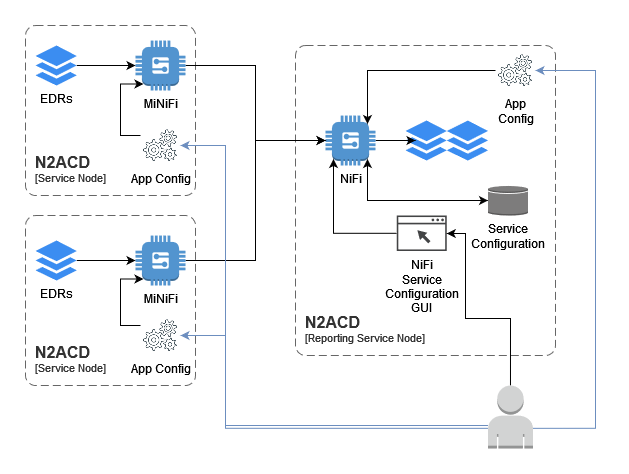
Note that EDRs can be transferred to the main NiFi system using any relevant technology/facility - including manual SCP, scripts utilising SFTP etc. The MiNiFi solution described in this installation page is optional, and may be replaced with another solution if appropriate.
For more information on how MiNiFi communicates with NiFi, refer to the official NiFi documentation.
Installation
As with the Apache NiFi installation, N-Squared provide a wrapper package
around the MiNiFi .tar.gz distribution from Apache. Install MiNiFi from the
N-Squared repository. Execute the instructions specific to your operating
system:
| RHEL 8 | Other RPM-based Systems |
|---|---|
sudo dnf install n2minifi-wrapper |
sudo yum install n2minifi-wrapper |
Warning: The package installation will shut down Apache MiNiFi if it is running.
The Apache MiNiFi installation using the wrapper package will:
- Install Apache MiNiFi in subdirectories of
/opt/minifi - Configure Apache MiNiFi for execution via systemd as the service
minifi.
The MiNiFi directory consists of the following important files and directories:
/opt/minifi/binThe MiNiFi start/stop script and additional N-Squared scripts are stored here./opt/minifi/edrBy default MiNiFi will read EDRs from/opt/minifi/edr/input. Other directories are not directly used by MiNiFi./opt/minifi/confConfiguration files are stored in this directory. The important files areconfig.json, which defines a NiFi-style flow for transfer of EDR files to a NiFi “remote port” andminifi.propertieswhich controls MiNiFi startup and NiFi base connectivity./opt/minifi/logsThe MiNiFi log fileminifi-app.logreceives all log output by default.
The Apache MiNiFi configuration is designed to only transfer files from the local
file system to the main Apache NiFi service installed on the ACD reporting service.
This configuration is controlled by the configuration file /opt/minifi/conf/config.json
which is a JSON formatted file of a NiFi data processing pipeline.
EDR Transfer from N2SVCD
ACD EDRs are generated by n2svcd and stored in a local directory on disk. This may
be a directory such as /app/edr or /edr. It is important this is not the same directory
that is used by MiNiFi for reading EDRs - otherwise there is the risk that a file will
be read while still being written by n2svcd.
Using a moveAndCopyOnWriteComplete-minifi service, the ACD MiNiFi installation
will move ACD EDRs from this source directory to the input directory for Apache
MiNiFi to read and process. The default directory is /opt/minifi/edr/input.
It is important to note that an EDR file that is successfully read by Apache MiNiFi will be deleted off disk, even if not yet copied from the SVC node to the reporting node. Apache MiNiFi has its own buffering and storage system for in-flight data which stores EDR files until the stream processing can be completed.
For this reason the moveAndCopyOnWriteComplete-minifi service will move the
file from the source (where n2svcd saves it) to the MiNiFi input directory, and also
can be configured to save a backup of this file in another directory (e.g. /opt/minifi/edr/backup)
To configure the service, the configuration file
/usr/lib/systemd/system/moveAndCopyOnWriteComplete-minifi.service must be
edited to configure the correct source for EDRs:
systemctl edit moveAndCopyOnWriteComplete-minifi.service --full
The default source directory is /var/log/n2svcd/edr. The default destination
directory is /opt/minifi/edr/input.
Note that when using the backup mechanism of this service, be very aware of disk space. In a production system, insufficient disk space can lead to data loss as the disk fills up with backup files.
Note that only files ending in .edr are moved between these directories, and files
starting with . are ignored.
On first install, enable the script once configured:
systemctl enable --now moveAndCopyOnWriteComplete-minifi.service
File Monitoring
The MiNiFi package also installs the monitorAndAuditFileChanges-minifi script. This can be configured
and edited on the EDR source system as well:
systemctl edit monitorAndAuditFileChanges-minifi.service --full
This script must also be enabled after first install. Ensure it is run on startup:
systemctl enable --now monitorAndAuditFileChanges-minifi.service
It is recommended this script is enabled and started as it can help audit and track file processing of EDRs through the system described by this installation documentation.
Creating the MiNiFi Processing Configuration
A default MiNiFi processing configuration is distributed with the minifi-wrapper package.
This configuration consists of three components:
- The transfer of files from the service nodes to the reporting server. This is coded in the MiNiFi
config.jsonfile. - The receiving of files on the reporting server from the service nodes. This is coded in a NiFi dataflow with a remote port defined. A default implementation called
MiNiFi File Receiveis available from N-Squared and should be installed into the receiving NiFi instance. - The processing of received files. Processing of N2ACD files is performed by several processing groups. Installation and configuration of these is covered by the dataflow configuration page.
The following sections walk through the process of configuring the dataflow from MiNiFi installations to the N2ACD NiFi reporting instance.
The “NiFi File Receive” Process Group
The NiFi File Receive Process Group first starts with a special NiFi processor called an Input Port. An input port defines a local destination that remote NiFi and MiNiFi instances can send data to.
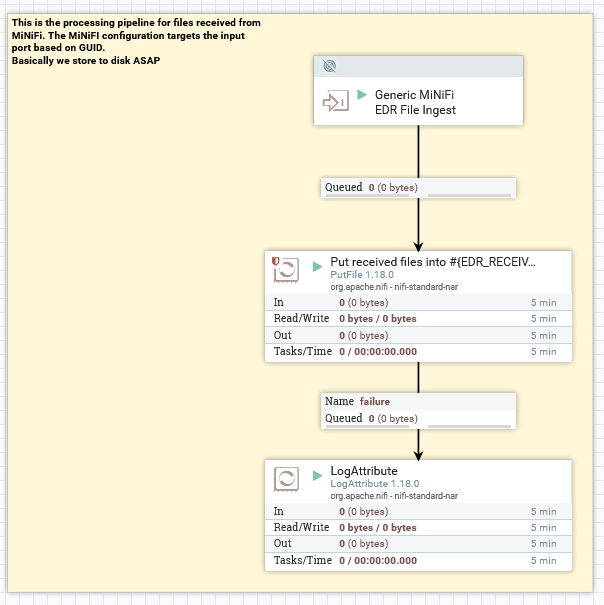
This group receives files from remote NiFi instances. NiFi has a correlation mechanism to correlate the input node with the output node used by the remote instance based on the ID (the GUID) of the node itself. The ID of the “Generic MiNiFi EDR File Ingest” port is what is used by MiNiFi to determine what “input port” to send data to:
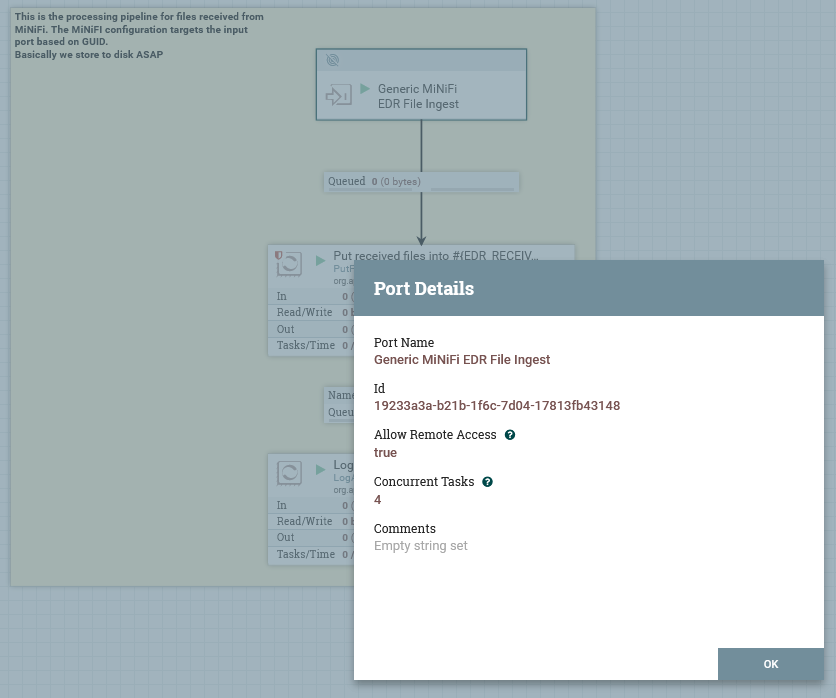
Note that the name of this is not relevant for connectivity between MiNiFi / NiFi, only the GUID is used.
The PutFile node will write files immediately to disk. Actual processing is then done by reading these files back out from
disk again (after they are copied from the receive directory to the input directory by the moveAndCopyOnWriteComplete
service).
The PutFile node determines where the files are placed:
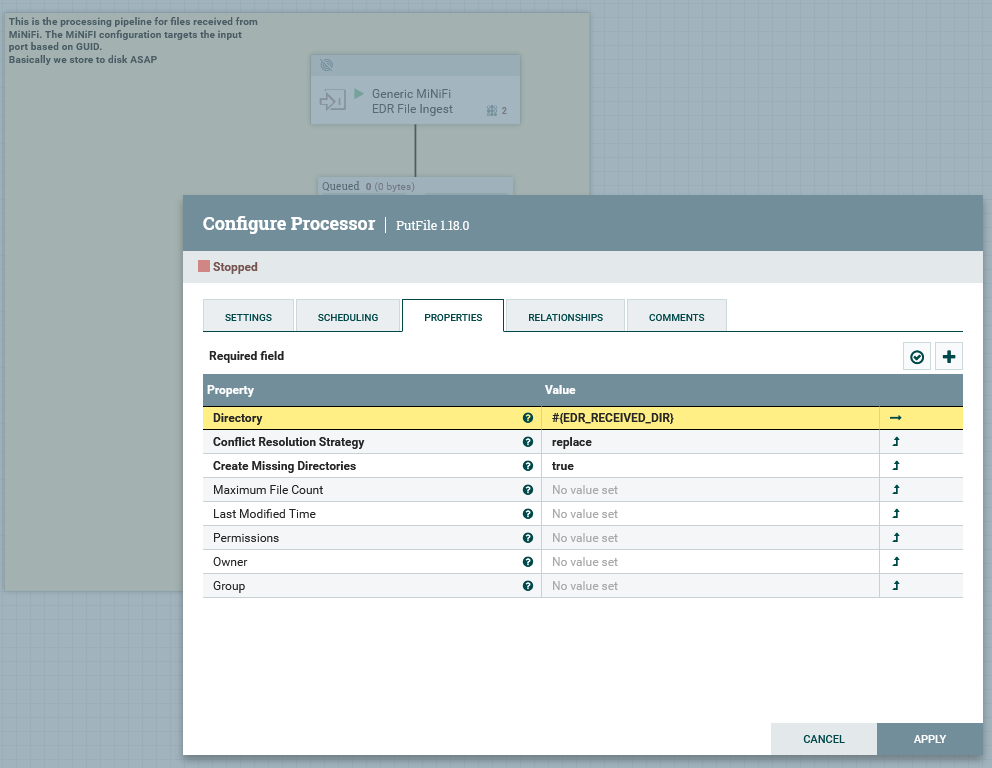
Note the use of the NiFi property #{EDR_RECEIVED_DIR} requires the use of
a NiFi Parameter Context to define the environment value for this parameter.
The “MiNiFi File Push” Configuration
The config.json file distributed with the n2minifi-wrapper package and installed as /opt/minifi/conf/config.json
needs to be reconfigured and updated for each environment. Each service node can use the same config.json once
the following changes are made to the distributed version.
Edit config.json and make the following changes:
| Configuration Option | Description | Value |
|---|---|---|
rootGroup.remoteProcessGroups.targetUris |
The URL of NiFi. This should be set to the HTTP URI as configured in NiFi’s nifi.web.http.host configuration field. This should not be the URI/port of the nifi.remote.input.host |
environment specific |
rootGroup.remoteProcessGroups.transportProtocol |
Either HTTP or RAW. If port 1026 on the NiFi host can be connected to by service nodes, set to RAW, otherwise set to HTTP |
RAW |
rootGroup.remoteProcessGroups.proxyHost |
If transportProtocol is set to HTTP, and port 8080 cannot be connected to directly by MiNiFi on the NiFi host, set this to the hostname of NiFi. Otherwise delete this. |
not set |
rootGroup.remoteProcessGroups.proxyPort |
If transportProtocol is set to HTTP, and port 8080 cannot be connected to directly by MiNiFi on the NiFi host, set this to ‘80’ for http or ‘443’ for https |
not set |
rootGroup.remoteProcessGroups.inputPorts.targetId |
The GUID of the Remote Input Port configured as part of the “NiFi File Receive” group. | environment specific |
rootGroup.processors.properties.batchSize |
Set to the maximum estimated number of EDRs to be generated across all N2SVCD streams on a single service node in the environment in 10 seconds. E.g. set to 50. | 1 |
After changing config.json, restart MiNiFi with:
systemctl restart minifi
Troubleshooting
MiNiFi will attempt to retrieve site-to-site details from NiFi. It will
use the rootGroup.remoteProcessGroups.targetUris list to initially
connect to NiFi, and then will determine whether to use the nifi.remote.input
configuration based on rootGroup.remoteProcessGroups.transportProtocol
configuration.
Verification that MiNiFi can retrieve the site-to-site document it
requires can be done using `wget`` on a service node:
wget http://web-host-if.examle.com/nifi-api/site-to-site
If this does not work on a service node, test on the reporting server:
wget http://localhost:8080/nifi-api/site-to-site
and then troubleshoot the httpd reverse proxy if the direct request works, but the remote request does not.
Note that if NiFi is configured to use HTTPS not HTTP (i.e. in nifi.properties
the nifi.web.https.host and nifi.web.https.port configuration options are set),
then the URL should be http not https. HTTPS comes with additional
requirements, such as client certificates. It is suggested that HTTP is
configured first, verified as working, then HTTPS is configured.
Configuring MiNiFi and NiFi to communicate can be challenging. Step through these troubleshooting tips if there are issues:
-
Apache HTTP. Apache should be used as a HTTPS proxy for the GUI only. The default proxy configuration is stored in
/etc/httpd/conf.d/nifi.confand is configured to connect tohttp://localhost:8080. If the NiFi UI is not accessible, this is the first point to check. -
MiNiFi Configuration. Ensure in the MiNiFi configuration file that the GUID of the “Input Ports”
targetIdfield is the same as the GUID of the “NiFi File Receive” Input Port in the GUI.
It is possible for MiNiFi to successful transfer files to NiFi, but receive
an error back from NiFi. The error in the minifi-app.log file will be similar to:
[org::apache::nifi::minifi::sitetosite::SiteToSiteClient] [warning] Site2Site transaction 56c99f76-131c-11ee-b2b2-ba51c0187852 peer unknown respond code 14
This error occurs when MiNiFi has read in too many files to stay below the
NiFi transfer limit configured for the remote process group. To fix this,
in the queue between the Input Port and the PutFile process (in the NiFi File Receive process group), update the Back Pressure Object Threshold
to be above the number of files waiting to be transferred. This will require
stopping the Input Port & PutFile processes on either side of the queue.
N2ACD Dataflow Configuration in NiFi
To complete the configuration, the Apache NiFi dataflow configuration for EDR and database processing must be done in the NiFi GUI. Follow the configuration details from the dataflow configuration page to achieve this.
Enabling TLS
MiNiFi can be configured to securely connect to NiFi using TLS/SSL. To achieve this security, MiNiFi uses TLS client and server certificates with an (intermediate) CA managed by NiFi itself.
Due to the design, it is crucial for the MiNiFi configuration to correctly define certificates. It is not possible to, for example, use TLS without verifiable client and server certificates.
Assuming NiFi has been configured to use HTTPS, MiNiFi can be configured to connect securely with NiFi. Note that MiNiFi must be configured for secure communication if NiFi is.
Changes to the MiNiFi configuration for TLS consists of the following differences:
34,40c34,39
< #nifi.remote.input.secure=true
< nifi.security.need.ClientAuth=false
< #nifi.security.client.certificate=
< #nifi.security.client.private.key=
< #nifi.security.client.pass.phrase=
< #nifi.security.client.ca.certificate=
< #nifi.security.use.system.cert.store=
---
> nifi.remote.input.secure=true
> nifi.security.need.ClientAuth=true
> nifi.security.client.certificate=/opt/minifi/conf/ssl/nifi-rest.crt
> nifi.security.client.private.key=/opt/minifi/conf/ssl/nifi-rest.key
> nifi.security.client.pass.phrase=
> nifi.security.client.ca.certificate=/opt/minifi/conf/ssl/nifi-cert.pem
The following configuration fields in /opt/minifi/conf/minifi.properties must
be updated:
| Configuration Option | Purpose | Required Value |
|---|---|---|
nifi.remote.input.secure |
Informs MiNiFi that NiFi expects TLS communication. | true |
nifi.security.need.ClientAuth |
Informs MiNiFi that a client TLS certficate is required. Note that a client certificate may not be required, however the configuration for this setup is outside the scope of this documentation. | true |
nifi.security.client.certificate |
The path to the client certificate that NiFi will use when communicating with the server. | /opt/minifi/conf/ssl/nifi-rest.crt |
nifi.security.client.private.key |
The path to the client private key that NiFi will use with the client certificate. | /opt/minifi/conf/ssl/nifi-rest.key |
nifi.security.client.pass.phrase |
The passphrase to decrypt the key, if one is required. | none |
nifi.security.client.ca.certificate |
The NiFi certificate authority certificate, for MiNiFi to verify the server certificate provided by NiFi. | /opt/minifi/conf/ssl/nifi-cert.pem |
A client certificate must be generated and loaded into NiFi as a trusted client. To generate the files, see the NiFi TLS configuration.
The “MiNiFi File Push” Process Group
Note that there is no need to create this process group on NiFi. This
entire process group is coded into the config.json file loaded by MiNiFi.
This section exists for information only.
The NiFi File Push Process Group first starts with a special NiFi processor called an Remote Process Group. A remote process group is a processor that connects to an Input Port on NiFi. It can be used to transfer data between two NiFi instances and also is the configuration used by MiNiFi to connect to NiFi.
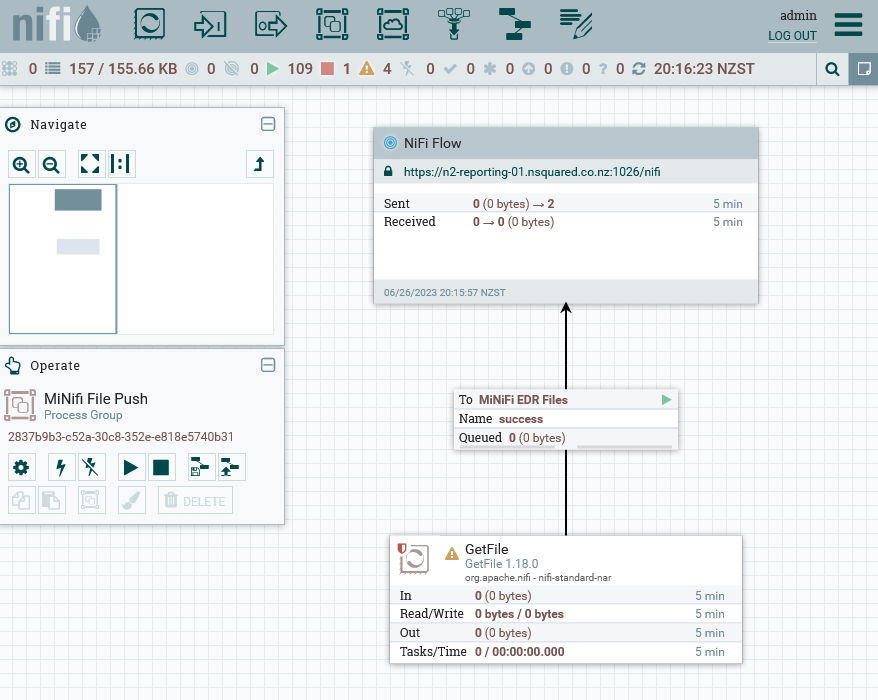
The GetFile node determines where files are read from. It is expected that
the moveAndCopyOnWriteComplete-minifi service is run on each service node to copy
N2ACD EDRs from the N2SVCD source directory into the MiNiFi input directory (on
the SVC itself). Then the MiNiFi instance will copy the file from the service node to
the reporting service.
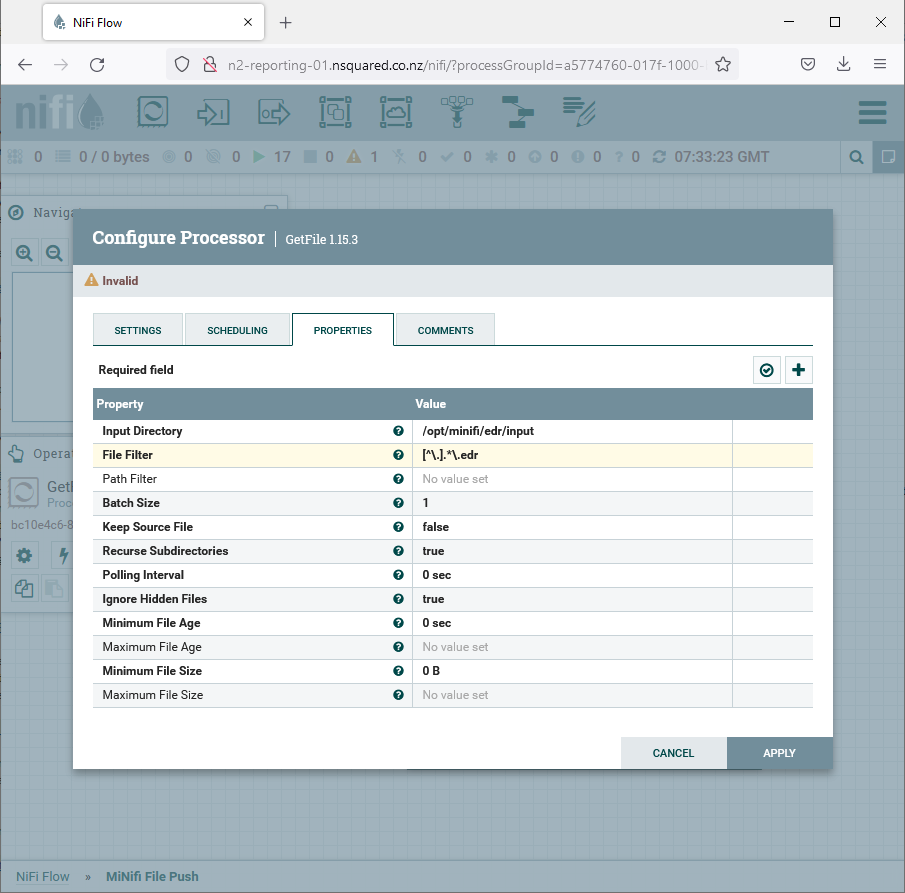
It is important that the input file format and input directory is correct in
this configuration. Note that the Batch Size is set to one by default to
have only one EDR file ever read into the MiNiFi internal cache, leaving the
rest of the files to move (if any) on disk in the input directory.
In a production environment, it is suggested this is increased slightly to, for example, 10, however due to the speed and efficiency of file transfers it is unnecessary to increase this significantly.
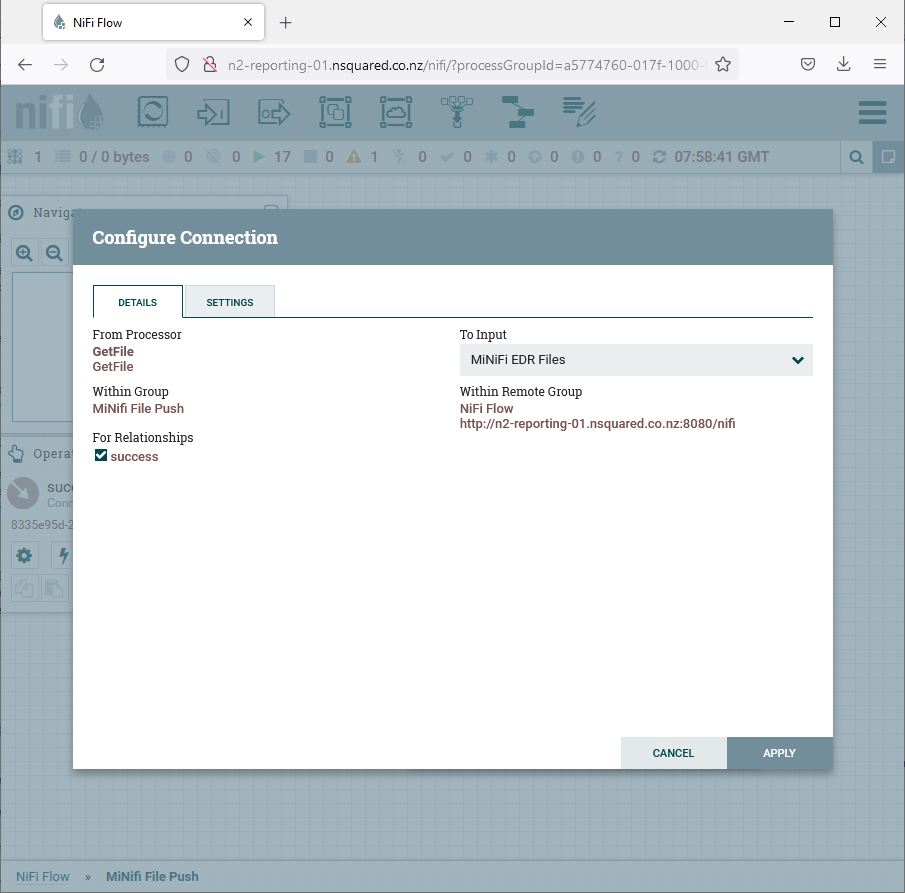
Unlike normal connectors, connectors in NiFi that connect into a “Remote Process Group” actually configure the Input Port (the “MiNiFi EDR” node from the “NiFi File Receive” process group). If the name of the input port changes, this needs updating:
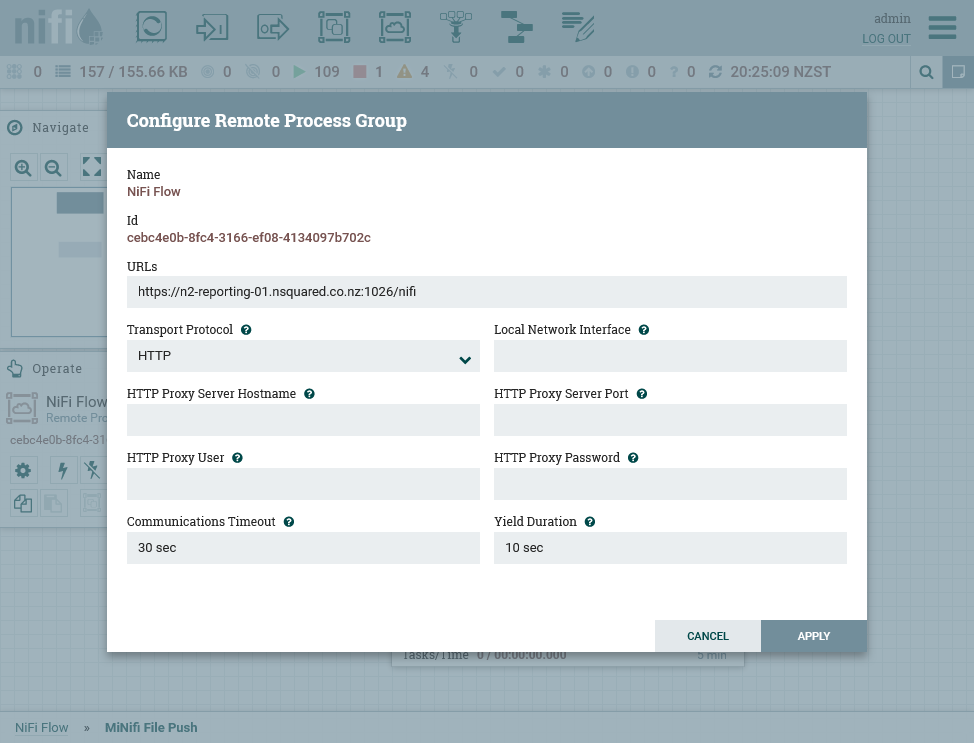
The most important aspect of configuration, and one that must be done on each environment independently after import of the process group template, is the configuration for the URL of the NiFi host:
Creating a new config.yml
To build the config.yml from NiFi, the following actions must be taken on
a separate computer (e.g. a laptop or desktop machine):
- Download the process group as a template from NiFi. Note to achieve this you must create a template from the process group first, then from the templates list (available from the burger menu in the top-right of the NiFi GUI) download the template.
- Using the MiNiFi toolkit (https://nifi.apache.org/minifi/download.html),
convert from the XML used by NiFi to the
yamlconfiguration format used by MiNiFi - Copy the resulting file into
/opt/minifi/confon the target machine asconfig.yml